Product Grid Data
The metrics that trigger your AMP-triggered flows will populate relevant product data tailored to each recipient. Leverage this data within your email designs to bring personalized shopping experiences to life.
📘 This page reviews the specific Universal content blocks provisioned by Wunderkind Platform. For general instructions on how to display dynamic properties from action payloads using Klaviyo templating code, head to our Dev Portal, where you'll find example JSON blocks and a breakdown of variables available for use in any part of the email template, for example in the hero section.
Product Grid Creative
⚠️ Wunderkind's provisioned content blocks are pure HTML blocks in Klaviyo. If configuring custom code isn't feasible for your team, follow the drag-and-drop setup outlined here instead.
In your library, find three blocks pre-configured by Wunderkind to visualize metric data as product grid sections within your emails. Apply branding as desired, then insert into any template being triggered by a Wunderkind metric.
- Wunderkind Product Grid
- Wunderkind Product Grid - Stacking
- Wunderkind Product Grid - 2 Columns
For help with HTML/CSS issues, see Klaviyo's common troubleshooting steps.
Desktop Layouts
On desktop, both Wunderkind Product Grid and Wunderkind Product Grid - Stacking display each product card on its own "row", where the product image sits next to the product name and button. The cycle icon 🔄 on these blocks indicates that they're configured with Content repeat. This setting repeats the creative once per dynamic product that Wunderkind passes in the Items variable in metric payloads, enabling efficient iteration over all products within a single block.
The Wunderkind Product Grid - 2 Columns block does not use Content repeat settings. This option places two product cards on one "row".
Mobile Layouts
The Wunderkind Product Grid block maintains the desktop layout on mobile, scaling down the image and tightening space between design elements.
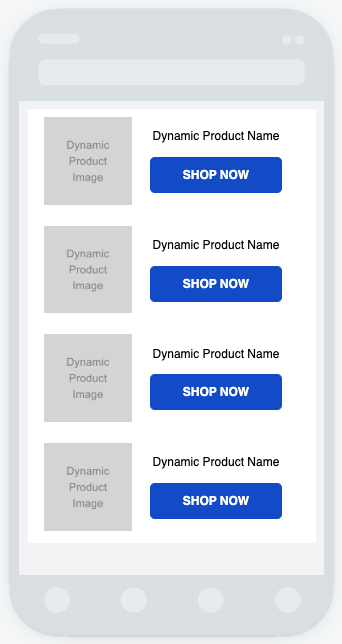
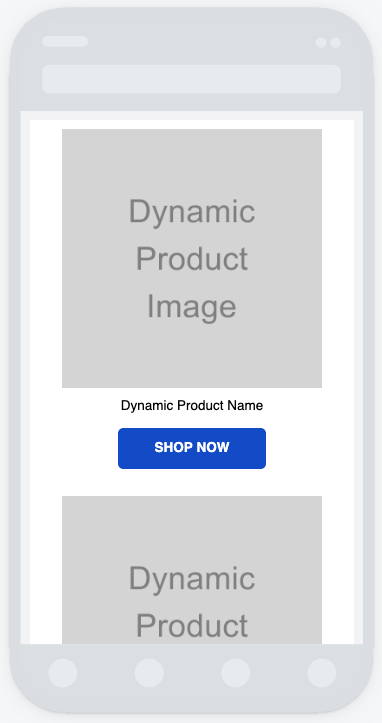
The two blocks Wunderkind Product Grid - Stacking and Wunderkind Product Grid - 2 Columns give each design element its own row on mobile. Each product's image, name and button all appear "stacked" on top of each other.
📖 Continue through the Getting Started Guide:
- Connect your Klaviyo account to Wunderkind Platform
- Review new Wunderkind metrics
- Complete flow setup in Klaviyo
- Add product grids to emails in Klaviyo
- Test and Launch the Klaviyo AMP Integration
Comments
0 comments
Please sign in to leave a comment.